THE GIST OF IT
- Cash App Tags work where Visa tap to pay is accepted and there are no minimum balance or activity requirements.
- You need an active Cash App Card before you can activate a tag. If you have one, the whole setup takes about a minute inside the app.
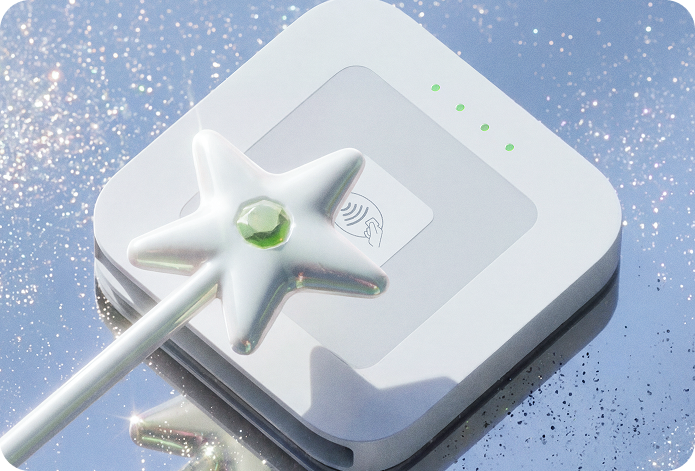
- On iPhone, lay the phone flat and place the wand on the screen (gem up, over the front camera). On Android, hold it against the back of the phone, behind the on-screen star.
- Your tag has the same protections as your card. You can lock it instantly in the app, you'll get real-time alerts on every tap, and you're covered by zero fraud liability1 for unauthorized charges as long as you report them within the required timeframe.
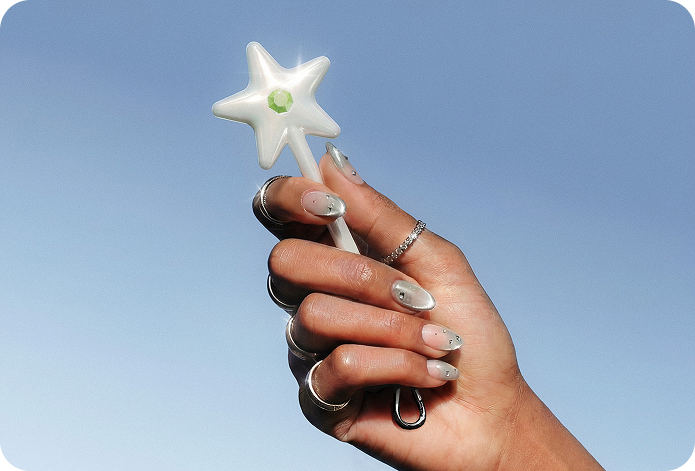
- Cash App Tags2 drop as limited-edition payment accessories you can clip to a keychain, hang off a backpack, or wear however you want.
How to activate your Cash App Tag
Activate your tag so it’s linked to your Cash App Card and you can start paying with it. The whole process takes about a minute, and you'll do it entirely inside Cash App.
Step 1: Find your tag in the app
Open Cash App and go to the Money tab. Swipe down on your balance to see your card and tag. Swipe over to your tag, and you'll see an Activate button. Tap it to start activation.
Step 2: Accept the terms
The app will show you a short set of activation steps along with the terms that cover how the tag works with your card. Scroll down and tap Accept terms to move forward. Your tag has the same protections and limits your card already has.
Step 3: Position your phone and tag
This is where the process splits depending on your phone. Your phone's NFC reader needs to detect the chip inside the tag, and iPhones and Androids put their readers in different places. The next section walks you through both.
iPhone vs. Android activation
iPhones and Androids position their NFC readers differently, so the activation step varies by phone. iPhones read NFC from the front of the device (the screen side). Androids read it from the back. If you hold the wand in the wrong spot, the app can't detect it, but nothing is broken. You just need to adjust which side of the phone you're using.
Activate on iPhone
Remove your phone case, especially if it's thick or metal. Lay your iPhone flat on a table or solid surface with the screen facing up. Place the tag on the screen with the gem facing up, matching the tag-shape outline the app displays. Center it over the front-facing camera area near the top of the phone. The top of the wand will hang slightly off the edge, and that's expected.
Tap Start activation in the app, then don't move the wand or the phone. Progress will run through several stages, and you may see sheets appear and disappear on screen. Checkmarks mean it's working. The whole process can take up to 1 minute. When you see the "Your tag is linked" confirmation, you're done.
Activate on Android
Remove your phone case. Hold the tag flat against the back of your phone, centered behind the pulsing star graphic the app shows on screen. Most Android phones have their NFC reader in the upper-center area of the back panel, right where you'd normally hold a card to tap to pay.
You should feel a small vibration when the phone detects the tag. Keep it pressed firmly in place until the progress bar completes at 100%. Once you see the confirmation screen, you're set.
Troubleshoot activation errors
If your iPhone shows a "We couldn't detect your tag" error, the tag probably drifted off-center. Lay the phone flat, re-center the tag over the front-facing camera, and hold both completely still. Even a slight shift can break the connection mid-read.
If your Android shows a "Disconnected" message, the tag likely moved away from the NFC reader. Place it back against the phone, hold firm, and try again. If it keeps dropping, try removing any accessories or thick cases between the tag and the phone's back panel.
In both cases, make sure NFC is turned on in your phone's settings and that Cash App is updated to the latest version.
What is a Cash App Tag
A Cash App Tag2 is a contactless payment accessory that links directly to your Cash App Card. It uses the same NFC tap-to-pay technology as the contactless chip in your card, draws from the same Cash balance, and lives under the same account. It's another way to pay, not a new account to manage.
Cash App Tags are limited-edition designed to be worn or clipped to things you already carry. The wand, mini-card, and heart are the first collections, and they are built to look like something you'd actually want on a keychain or bag strap. You need an active Cash App Card to order one. If you don't have a Card yet, you can order a Cash App Card in the app in a few minutes.
Where you can tap to pay with a Cash App Tag
Your tag works at places where Visa® contactless is accepted. That includes grocery stores, coffee shops, transit systems, vending machines, and most major retailers with updated payment terminals. The contactless symbol on the terminal is four curved lines, similar to a sideways Wi-Fi icon. Most terminals display it near the card reader.
There's no minimum purchase and no separate balance to fund. When you tap to pay, the amount comes straight from your Cash balance, the same one tied to your Cash App Card.
You're heading out for a run and don't want to carry your phone. Clip the tag to your shorts and tap for a water at the corner store on your way back. Or you're at a food truck after a long shift, and your phone is buried in your bag. Pull the tag off your keychain and tap.
The tag doesn't replace your phone or your card for everything. It handles contactless payments only, so it won't work for online purchases, ATM withdrawals, or at terminals that require you to insert or swipe. But for quick, in-person taps, it's one less thing to dig out of your pocket.
What to know before your first tap:
Before you head out to tap with your tag, make sure:
- Your Cash App Card is active and your Cash balance is funded.
- Your tag shows as activated in the app (swipe down on your balance, then over to your tag).
- You know where to lock it fast if you need to (find your tag in the app, then tap Lock).
That's it. Your tag is activated, your security controls are set, and you know where it works. The rest is just tapping.